Breeze
Our starting point is a new server provisioned with Laravel Forge
Install Laravel
In this example we will use composer to install Laravel. If you prefer a different method, Laravel provides plenty of methods of installation explained in the Laravel Documentation.
composer create-project laravel/laravel appLet's go to the new Laravel application directory
cd appUpdate the app .env file with your database credentials
DB_DATABASE=
DB_USERNAME=
DB_PASSWORD=
Create your storage symbolic link:
php artisan storage:linkInstall Breeze
composer require laravel/breeze --devphp artisan breeze:installThen run
npm install
npm run dev
php artisan migrate
Install Laranx
Copy laranx.zip to app directory and unzip.
unzip laranx.zipThis will add packages\srg\laranx\src files to your application
Add the following to composer.json
    "repositories": [
        {
            "type": "path",
            "url": "packages/srg/laranx",
            "options": {
                "symlink": true
            }
        }
    ],
And the following line to "require": section in composer.json
"srg/laranx": "dev-master"There have been issues with adding the package from the command line, so add it manually to the composer.json file.
Finally, run the following
composer update
php artisan migrate
SiteSeo Setup
Once SiteSeo has been installed in your Laravel application we are going to publish and setup routing.
Publish the theming directory
php artisan vendor:publish --tag=laranxThis will create the necessary files for themes in your views directory.
in your routes/web.php
replace:
Route::get('/', function () {
    return view('welcome');
});
with
use Srg\Laranx\Laranx;
Laranx::routes();
SiteSeo Admin
Once the previous steps are complete your SiteSeo install will work in your application.
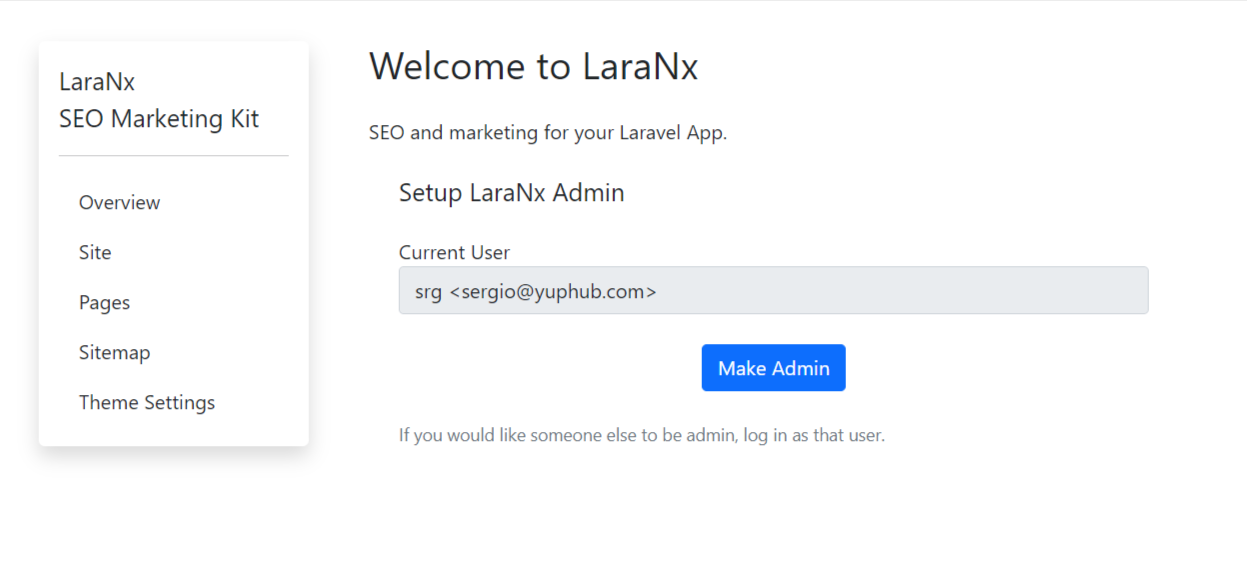
Log in to your application and replace 'dashboard' in the url with 'laranx'. ie: yoursite.com/laranx
You will get the Welcome to SiteSeo screen.
This concludes our Laravel Breeze full install.